
Social platforms
How to add Instagram to your system
Connection Options
There are two ways to connect to an Instagram account: by using a Facebook Business or through a standalone flow that connects directly to an Instagram account. Both methods will require a Meta for Developers account.
What Nitty Music Social supports on Instagram:
- Feed posts (single image, carousel, video / Reels).
- Stories (image and video).
- Attaching audio (music or original sounds) to Reels, Facebook Business connection only. The Instagram Audio API is not available for standalone connections.
- Replying to comments via an explicit user action.
What Nitty Music Social does not support:
- Story link stickers / swipe-up links: the Instagram Graph API doesn’t expose interactive sticker payloads, so Nitty Music Social can only upload the story media.
- Automatic comment auto-reply: there is no agent that watches for incoming comments and replies on your behalf. You can post a reply through the API, but each reply is an explicit action.
Setting up Meta Application
The following steps will guide you through the setup of a Meta application that can be used for connecting Instagram to Nitty Music Social.
Create a new app
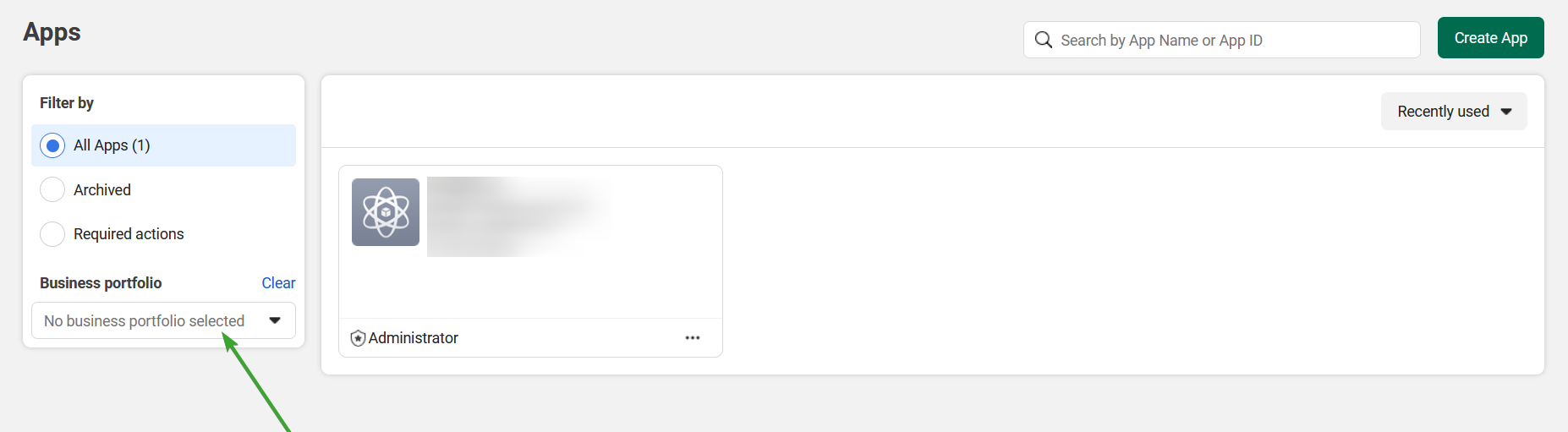
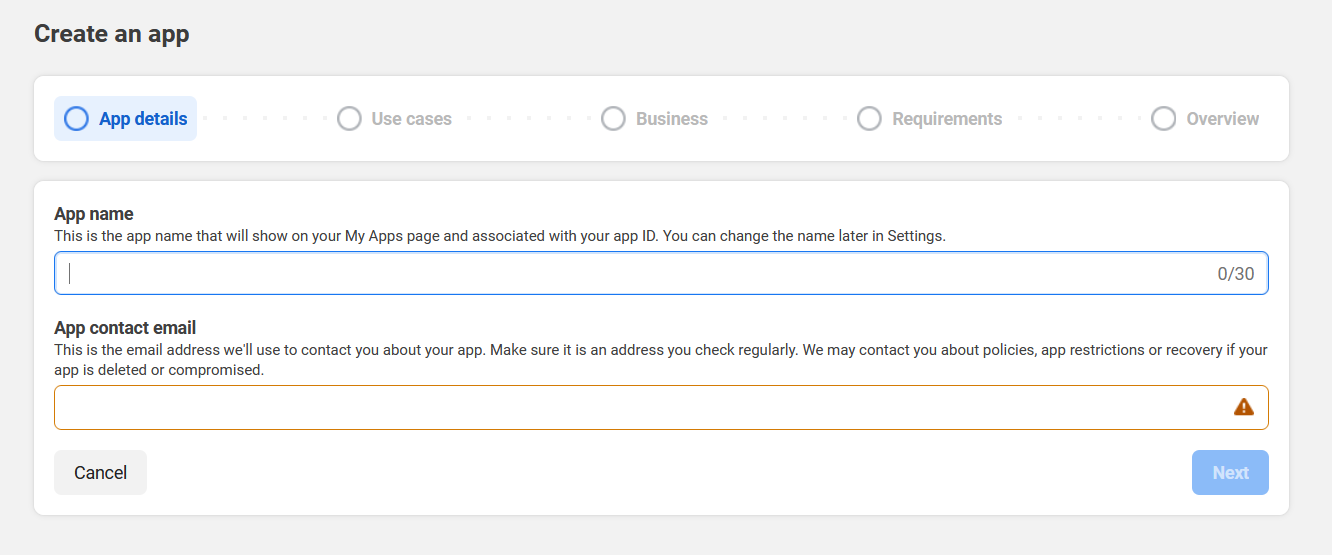
Select a business portfolio, then create a new app in Meta for developers.
Please be advised that for public applications, you will need to verify your business.
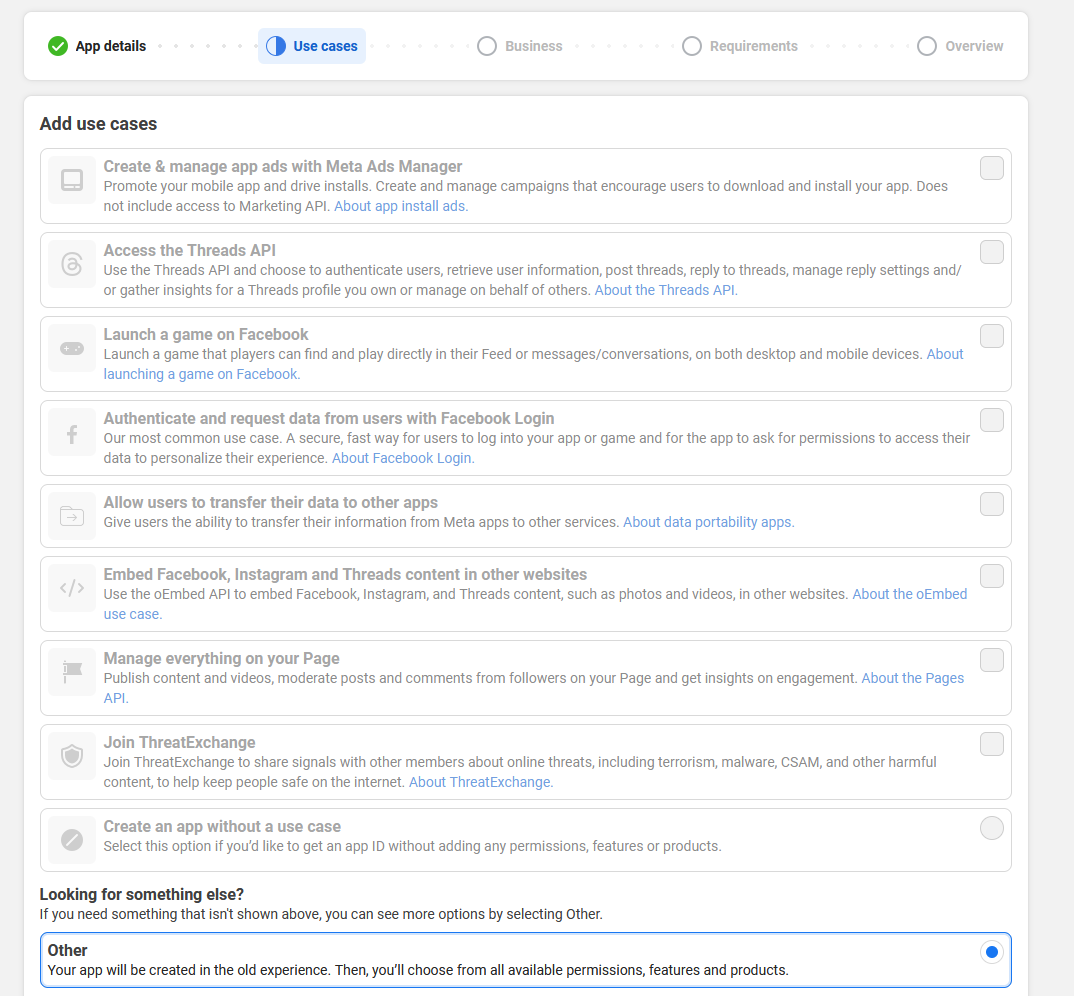
Select app type
Select "Other" and click next
Select business
Then select business
Add details and create app
Add all your details and click Create App
Facebook Business Option
If you have a Facebook Business page that is linked to your Instagram account, you can connect to it by setting up the Login for Business flow.
Set up Login for Business
Set up login for business
Set up Redirect URI
Set up a redirect URI back to the application
Your Instagram OAuth2 Redirect URI:
- Production:
https://your-social-domain.com/integrations/social/instagram - Local development:
http://localhost:4200/integrations/social/instagram - Docker:
http://localhost:5000/integrations/social/instagram
Set up permissions
Go to advanced permission and request access for the following scopes:
instagram_basicpages_show_listpages_read_engagementbusiness_managementinstagram_content_publishinstagram_manage_commentsinstagram_manage_insights
Copy your credentials
Go to basic permissions copy your App ID and App Secret and paste them in your .env file
Instagram should now be working!
Instagram Standalone Option
If you want to connect directly to your Instagram account without having to use a Facebook Business, use the standalone option.
Set up Instagram
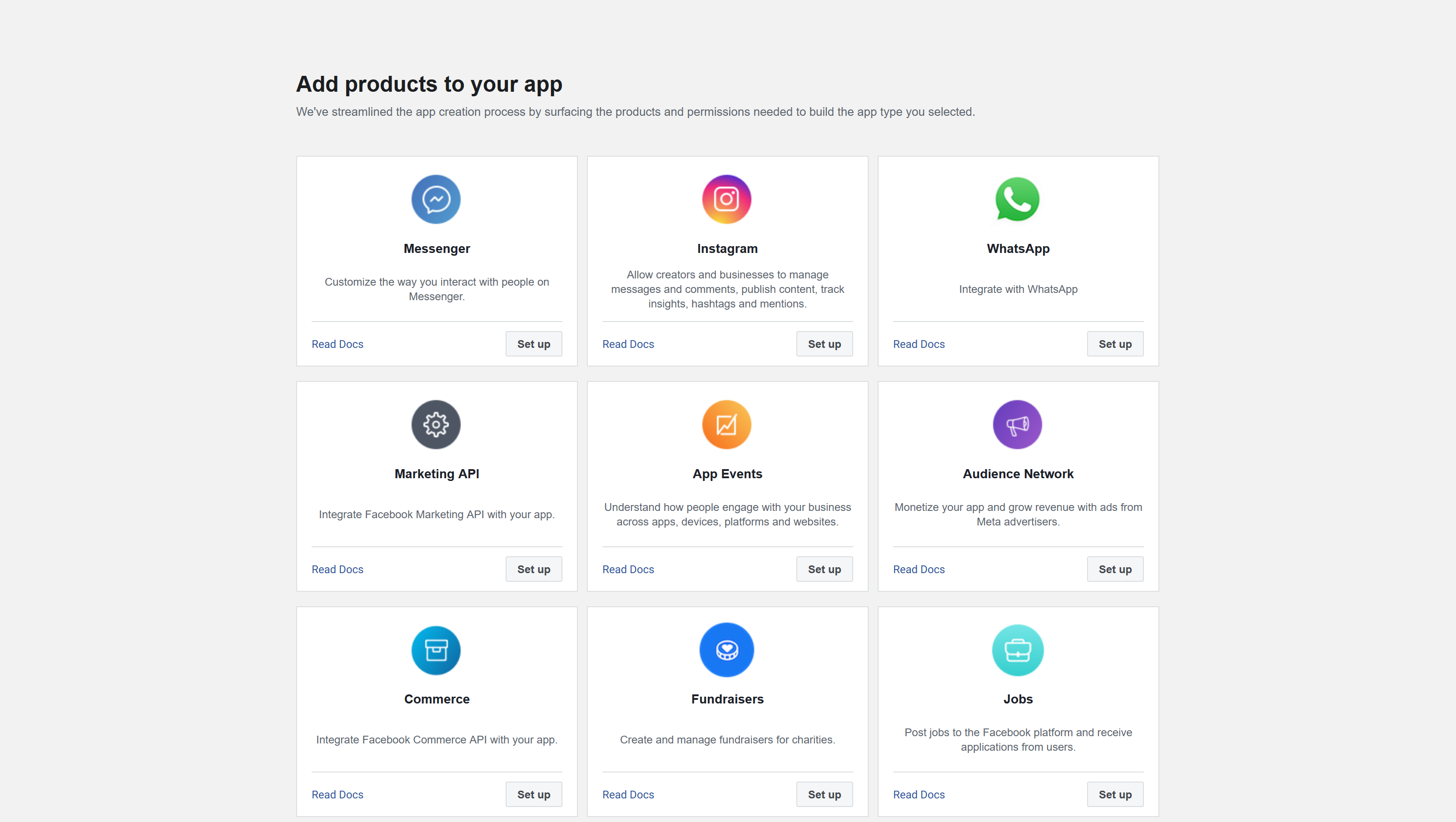
Set up Instagram.
Set up Instagram Business Login
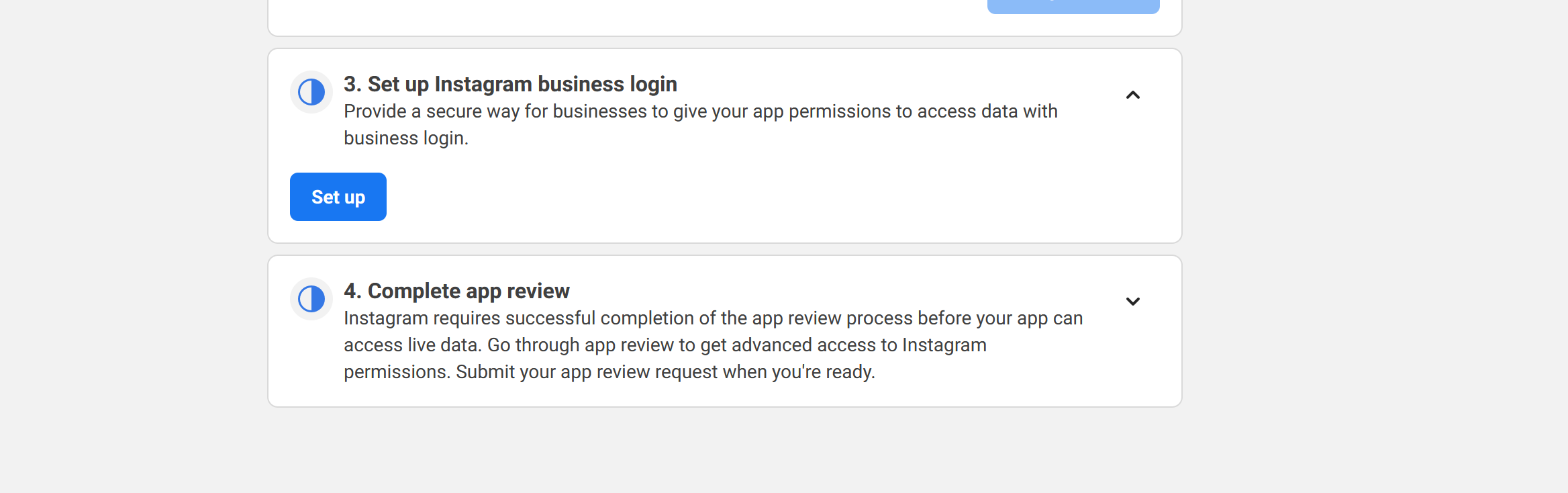
Click on the button to set up Instagram Business Login
Set up Redirect URI
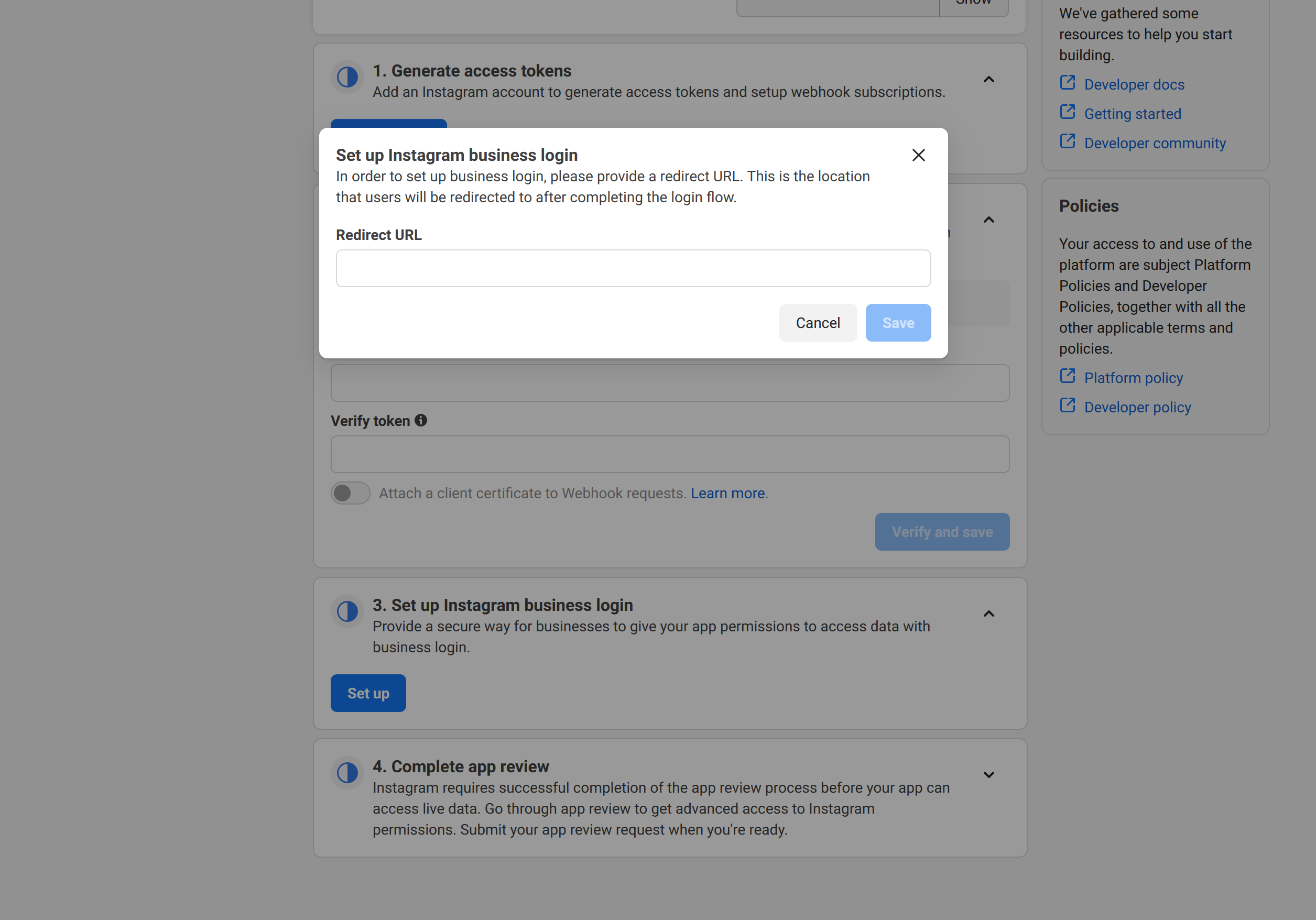
Your Instagram Standalone OAuth2 Redirect URI:
- Production:
https://your-social-domain.com/integrations/social/instagram-standalone - Local development:
http://localhost:4200/integrations/social/instagram-standalone - Docker:
http://localhost:5000/integrations/social/instagram-standalone
Copy Instagram App ID and Secret
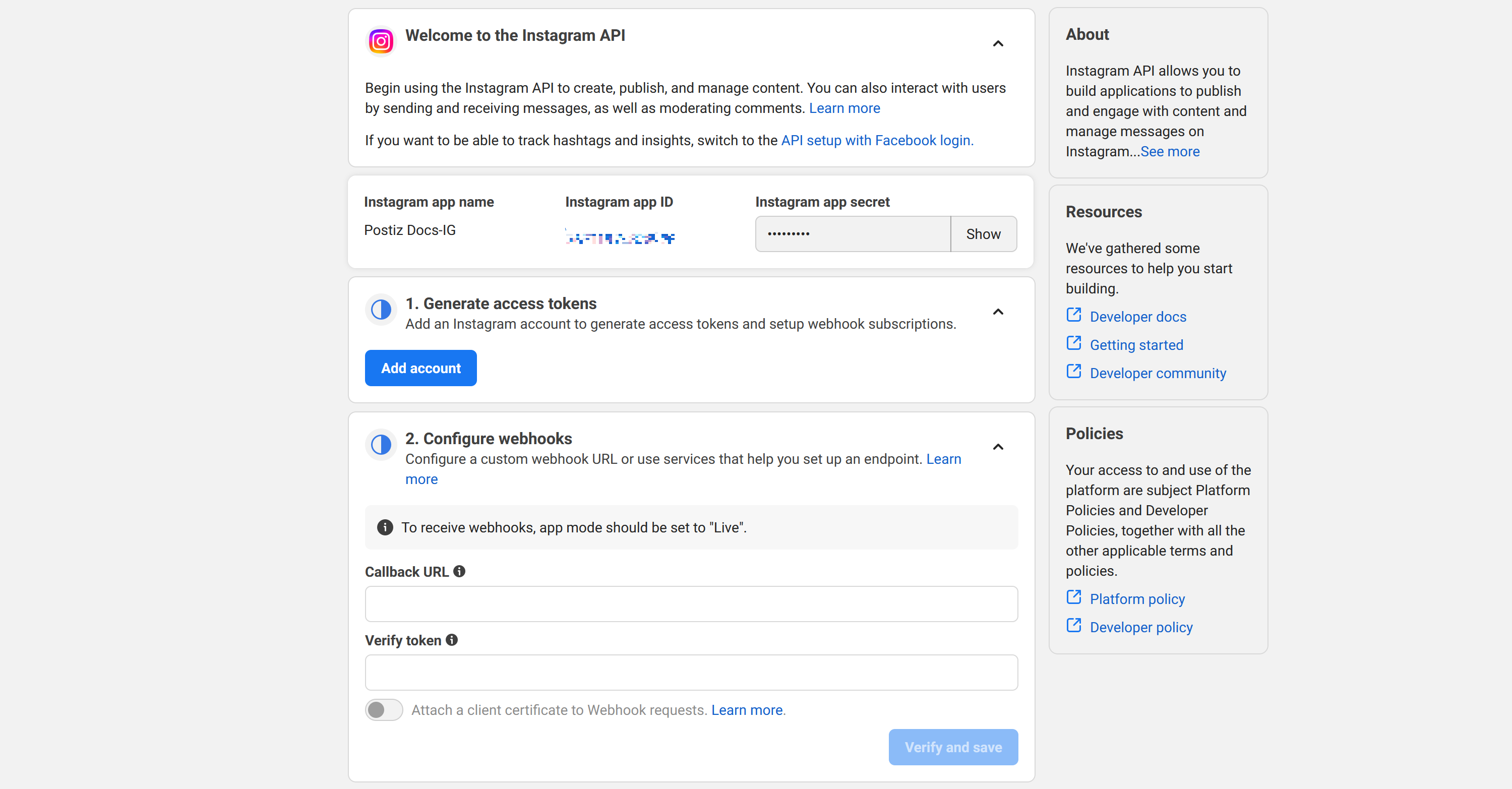
From your Instagram API setup screen copy the Instagram App ID and Instagram App Secret and paste them in your .env file
Add Instagram Standalone channel in Nitty Music Social Application
Go to the Nitty Music Social web interface, and click on the "Add Channel" button. Select "Instagram (Standalone)" from the list of available channels. You should be redirected to the Instagram login screen to authorize the application.
Adding App Roles
If you’re having trouble connecting to your Instagram accounts, adding them as App Roles may help.
Go to the App Roles page
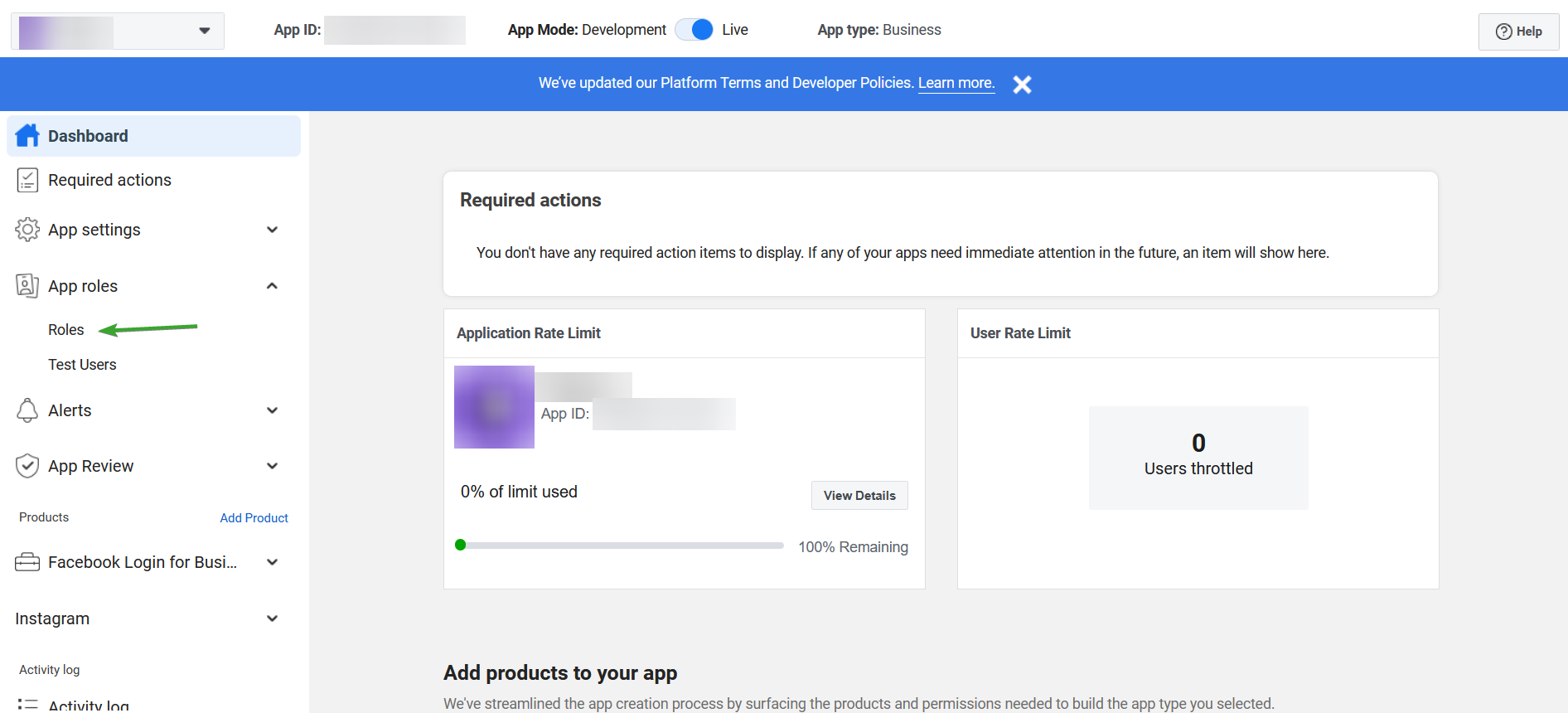
Add a role
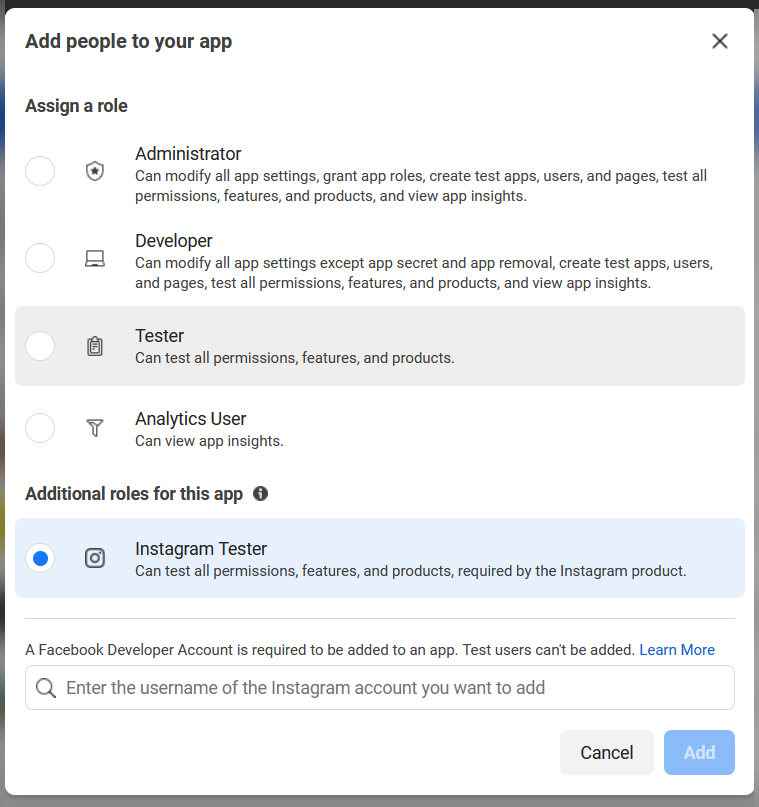
Click on "Add People"

Add an Instagram Tester
Select the "Instagram Tester" option, and type in the handles of all the Instagram accounts you'd like to connect to. Then, click "Add".
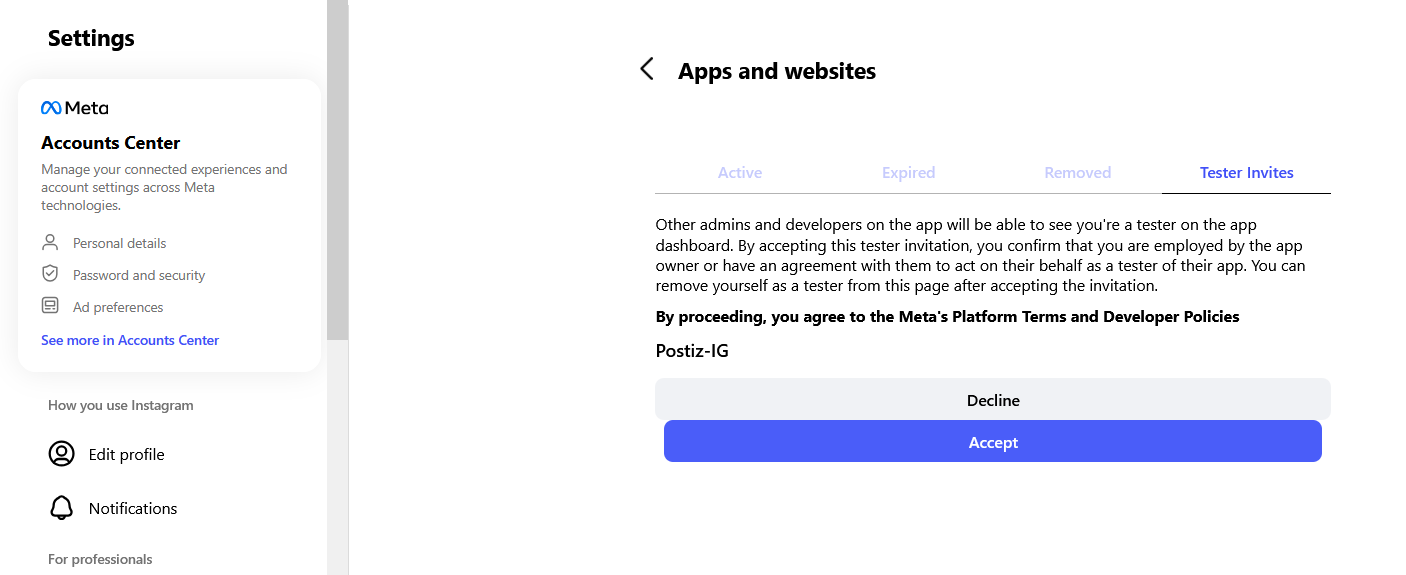
Accept the invitations
Go to your Instagram account, and accept the tester invitation in the Apps and Websites section of the profile settings.
Troubleshooting
“Insufficient developer role” error
This means the Instagram account you’re trying to connect hasn’t been added as a tester on the Meta app. Walk through the Adding App Roles section above for that exact account: add it as an Instagram Tester, then accept the invitation from within the Instagram app’s settings.
Channel connects, but posts fail with permission errors
The advanced permissions on the Meta app must be approved (or your account must be a developer/tester on the app). Submit the app for review with the required scopes, until then, only roles you’ve added can publish.