
Other platforms
Discord
How to add Discord to your system
This integration requires that you have Manage Server permissions on the Discord server you want to integrate with.
Create a Discord Application
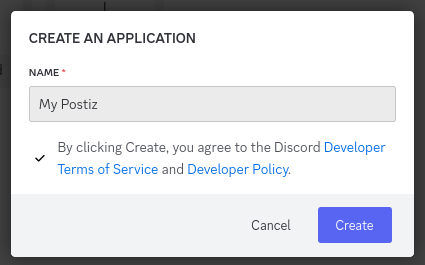
Login to Discord on the web, and then go to the Discord Developer Portal and click on "New Application".
Add an App Icon
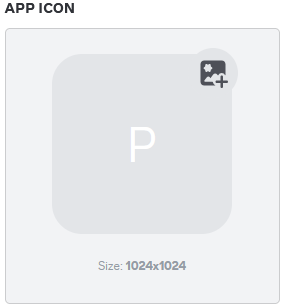
Upload the App Icon of your choice (1024x1024px max) and save your changes. If you do not do this, you will get 404 errors in logs when trying to add the Discord channel in the Nitty Music Social web interface.
Get and set your Client ID and Client Secret
You can find this in the OAuth2 section of the Discord Developer Portal.
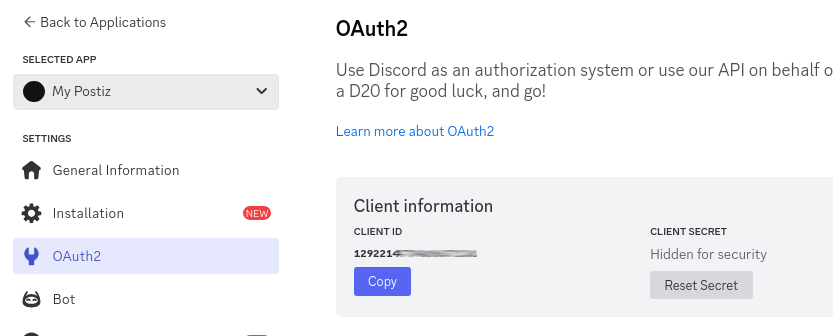
Set these in your .env file as follows;
Add a Redirect URI
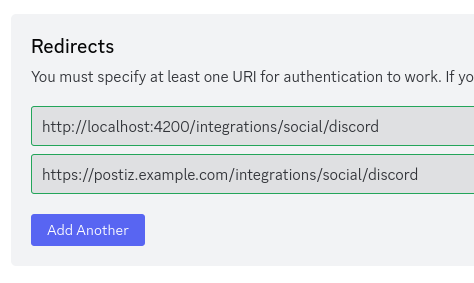
Your Discord OAuth2 Redirect URI:
- Production:
https://your-social-domain.com/integrations/social/discord - Local development:
http://localhost:4200/integrations/social/discord - Docker:
http://localhost:5000/integrations/social/discord
You can find this in the OAuth2 section of the Discord Developer Portal.
Create a Bot
Navigate to the "Bot" section of the Discord Developer Portal. Fill out the bot details however you like, and then click "Reset Token".
With the token that is generated, set it in your .env file as follows;
If you do not set this, you will get 404 errors when trying to add the Discord channel in the Nitty Music Social web interface.
Stop Nitty Music Social if it is running, and then start it using the .env file with the Discord details.
Add a Discord channel in the Nitty Music Social web interface
Go to the Nitty Music Social web interface, and click on the "Add Channel" button, and then select "Discord". You should be redirected to Discord to login.