
Social platforms
How to add Facebook to your system
Create a new app
Select a business portfolio, then create a new app in Facebook developers.
Please be advised that for public applications, you will need to verify your business.
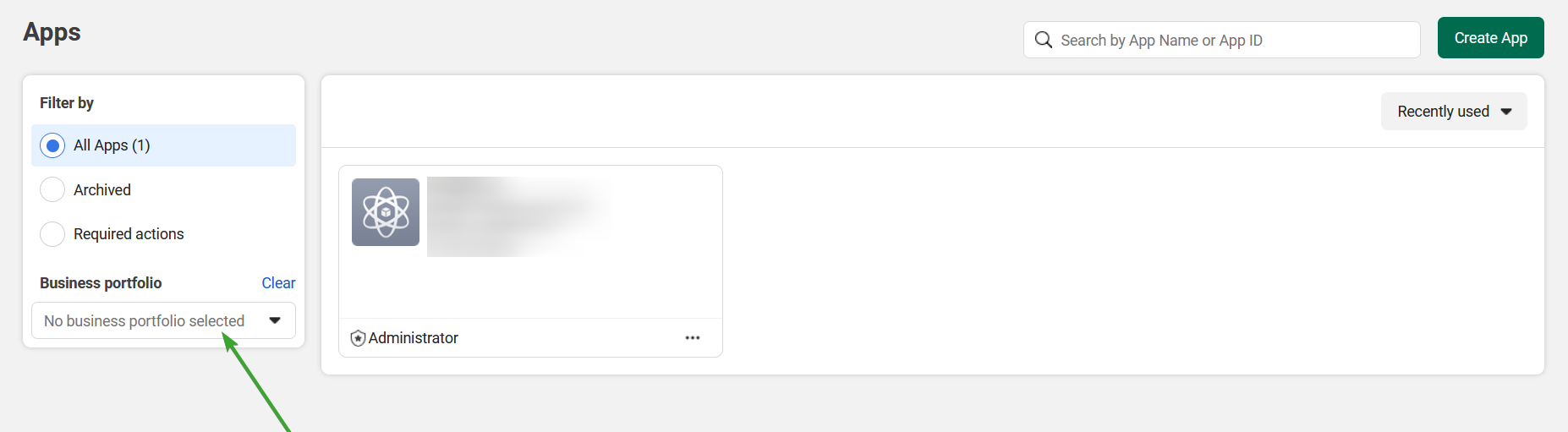
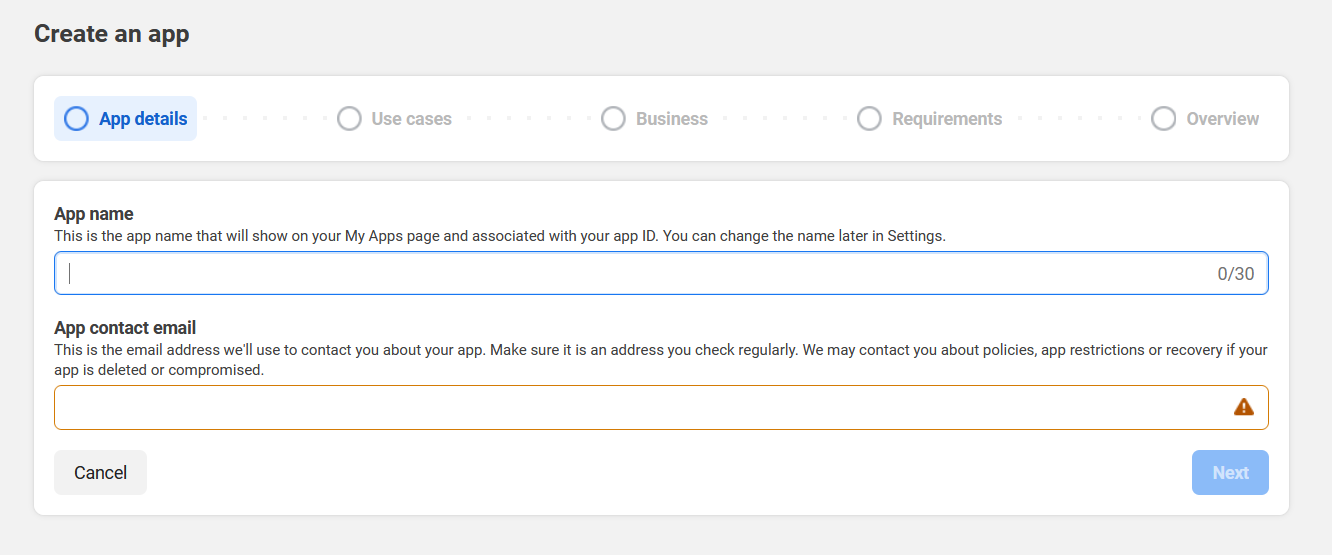
Show all use cases
On the "Add use cases" screen, select the "All" filter on the left
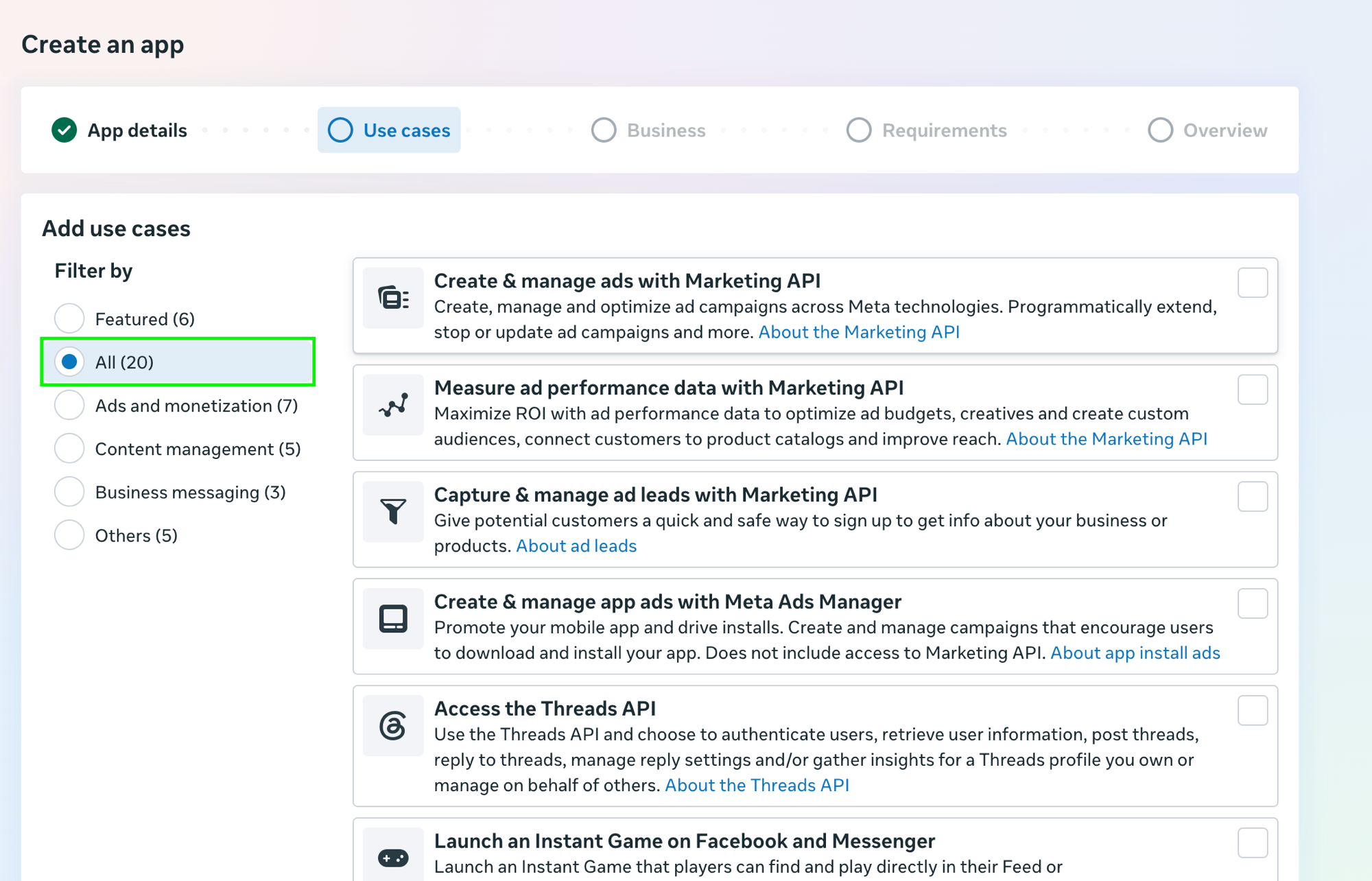
Select app type
Don't select any of the use cases. Instead, scroll to the bottom, and under "Looking for something else?" select "Other" and click next
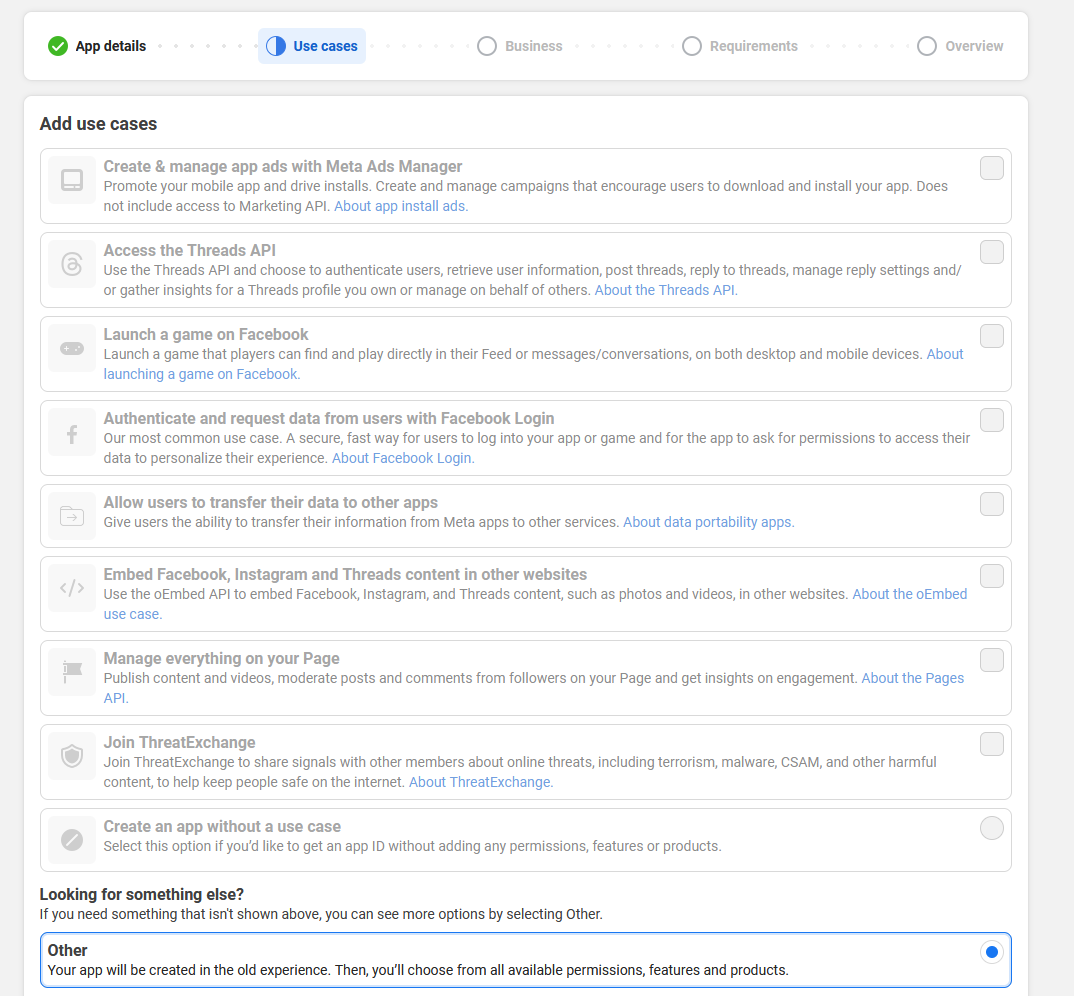
Select business
Then select business
Add details and create app
Add all your details and click Create App
Set up Login with Facebook
Set up login for business
Configure redirect URI
Set up a redirect URI back to the application
Your Facebook OAuth2 Redirect URI:
- Production:
https://your-social-domain.com/integrations/social/facebook - Local development:
http://localhost:4200/integrations/social/facebook - Docker:
http://localhost:5000/integrations/social/facebook
Request advanced permissions
Go to advanced permission and request access for the following scopes:
pages_show_listbusiness_managementpages_manage_postspages_manage_engagementpages_read_engagementread_insights
If your Nitty Music Social install is for personal use only these advanced permissions are not required for Nitty Music Social to function.
Set app mode to Live
Change the App Mode from 'Development' to 'Live'. If you do not do this then posts made via the API will display for yourself but will not be visible for other users.
Copy your credentials
Go to basic permissions copy your App ID and App Secret and paste them in your .env file
Facebook should now be working!
Troubleshooting
Image is missing from the published post
Check the App Mode of your Facebook app. In Development mode, posts with media are only visible to app developers/testers, everyone else sees the post without the image. Switch the app to Live mode to make the image visible to all users.
Facebook posts work for you but not for other users
Same root cause as above: the app is in Development mode. Only roles you’ve explicitly added (developers, testers, admins) can see content published via the API. Set the app to Live.