
Get started
Finding your way around
What every section of the app is for, and which ones you may not see
Nitty Music Social puts a lot behind a small left rail, and several of the most-used features are modals rather than pages. This is the map.
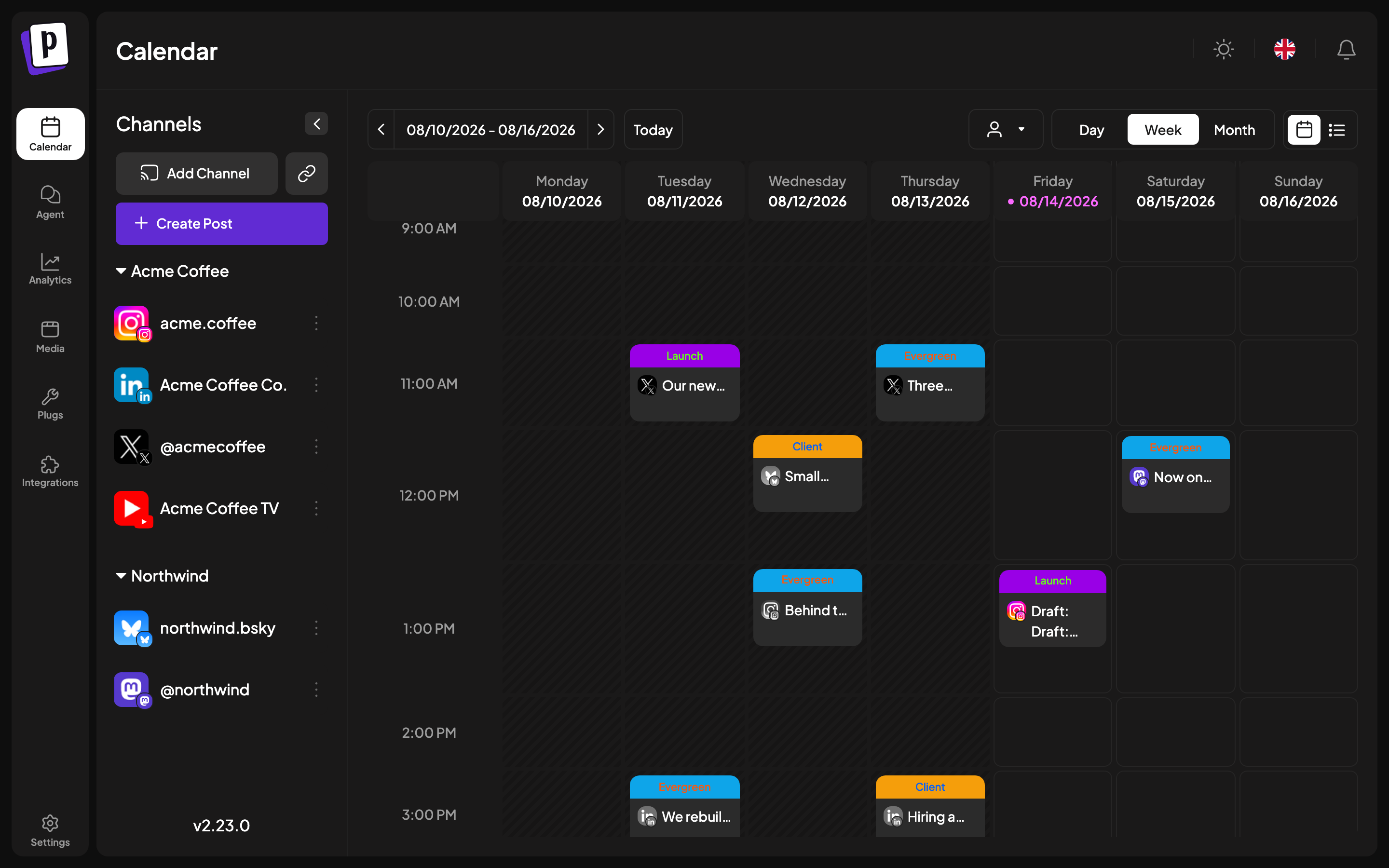
The left rail
| Icon | Section | What it is |
|---|---|---|
| Calendar | /launches |
The main screen. Your channels, the calendar, and the composer all live here |
| Agent | /agents |
An AI chat that can schedule posts and generate media for you |
| Analytics | /analytics |
Per-platform account metrics for the platforms that support them |
| Media | /media |
Everything you have uploaded, searchable and reusable |
| Plugs | /plugs |
Auto-repost and auto-comment automations, for a few platforms |
| Integrations | /third-party |
Non-social API integrations you pull media from, such as HeyGen |
| Billing | /billing |
Plan, payment method and invoices |
| Settings | /settings |
Everything else, as tabs |
On self-hosted Nitty Music Social: Billing does not appear at all, and neither do the UGC or Affiliate entries. There is nothing to bill.
Billing is also restricted to organisation admins, and is hidden entirely for accounts on a lifetime deal.
The top bar
- Organisation switcher, only shown when you belong to more than one.
- Streak, how many consecutive days you have published.
- Notifications, publish failures and system messages.
- Language and dark/light mode.
- Browser extension link, used by the platforms that connect through cookies rather than OAuth.
Things that are not pages
These are the features people most often cannot find, because they are modals or panels rather than entries in the rail.
| Looking for | Where it is |
|---|---|
| Add a channel | Calendar, left sidebar, Add Channel |
| Channel settings, time slots, bot picture | Calendar, the ... menu on a channel |
| Group channels by client | Calendar, channel menu, Move / add to group |
| The post composer | Calendar, Create Post, or click any empty slot |
| Per-platform post settings | Inside the composer, next to the preview |
| Tags | Inside the composer, bottom bar |
| Post statistics and short link clicks | Calendar, hover a published post, Statistics |
| Share a post for client approval | Calendar, hover a post, Preview |
| Your API key | Settings, Developers |
| RSS auto-posting | Settings, Auto Post |
| Webhooks | Settings, Webhooks |
| Saved channel selections | Settings, Sets |
Settings tabs
Settings is eight tabs, and which ones you see depends on your plan and role.
| Tab | What it holds |
|---|---|
| Global Settings | Time format, email notification toggles, short link preference |
| Teams | Invite members and set roles |
| Webhooks | Fire an HTTP callback when a post publishes |
| Auto Post | Turn an RSS feed into scheduled posts |
| Sets | Saved channel selections |
| Signatures | Reusable sign-offs, optionally auto-added |
| Developers | API key, OAuth apps and MCP configuration |
| Approved Apps | Third-party apps you granted access, and revoking them |
On self-hosted Nitty Music Social: every tab is available, because plan gating does not apply. On a managed deployment, feature availability depends on the instance configuration.
Times and dates
Nitty Music Social renders every time in your browser’s timezone. There is no timezone setting on the account. The only time control is Date Metrics in Global Settings, which switches between AM/PM and 24 hour display, and it is stored per browser rather than on your account.
This matters when you work with a client in another timezone: the slot you see is your local time, not theirs.